What a PDF/A is, and why you are being asked for one
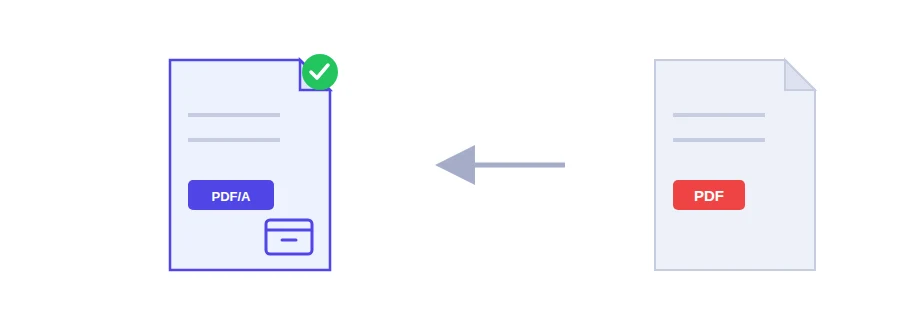
The instruction comes from a court, a records office or a government portal: documents must be filed as PDF/A. Your file is already a PDF, so what is the difference? PDF/A is not another name for the same thing. It is a version of PDF built for long-term preservation, defined by the international standard ISO 19005. The point is that the file opens years from now and looks exactly as it does today, on any device and in any software.
Three things an archival PDF guarantees
Embedded fonts. The text does not rely on fonts installed on the reader's computer, so letters are not swapped and the layout does not shift.
Device-independent colour. Colours are defined in a way that does not depend on a particular screen or printer.
No external dependencies. Everything needed to display the document is inside the file itself.
Re-saving the file does not make it PDF/A
A common shortcut is to open the PDF in a reader and save it again, or to add "PDF/A" to the file name. What you get is still an ordinary PDF, with the same missing fonts if it had any. If the receiving office checks conformance, the upload can be rejected. A real conversion rebuilds the file according to the standard, and that is what this tool does using Ghostscript.
Converting, and doing it last
Choose the PDF you need to file.
Click the convert to PDF/A button, wait for processing to finish, and save the result.
If your submission is made of several documents, merge them first and keep the PDF/A conversion as the final step, because editing the file afterwards in other software can take it out of conformance. If the document is still a Word file, turn it into a PDF before anything else.
Who handles your file
This tool does not run in your browser. The file is sent to Jood's own server and converted there by Ghostscript, an open-source program, without passing through any third-party service. Processing happens in a temporary folder, and the temporary files are deleted once the conversion is done.
FAQ
True PDF/A conversion needs an engine running on the server. Simply re-saving the file does not make it compliant, and this tool never claims a conversion it has not actually performed — and that engine is already enabled on this site.
We use cookies to measure traffic and improve the site (Google Analytics), and may show ads later. Nothing is enabled without your consent. Privacy policy