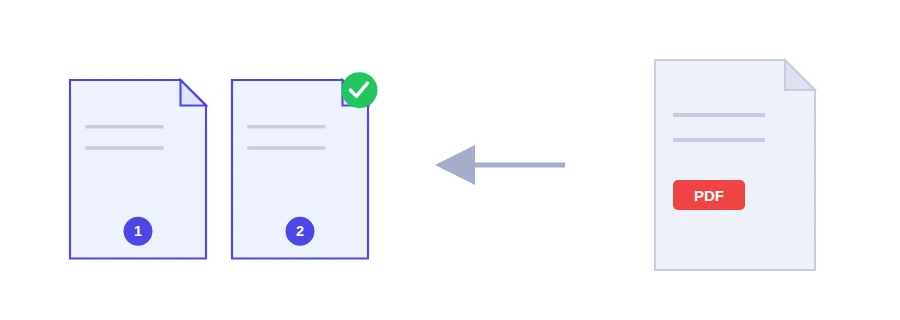
A tender bid, a thesis or a forty-page contract goes to the printer, the sheets get shuffled at the copier, and without numbers you are left sorting them by hand. Numbers help the reader too: they can point to "page 12" in an email, and they can see at a glance that no page is missing.
The Jood tool puts a number on every page of the file. The number is written into the pages themselves, so it shows up on paper and on any device.
Three places for the number
Bottom centre: the usual choice for reports and theses.
Bottom right.
Top right: handy when the bottom of your pages already carries signatures, stamps or a footer.
Pick the position, click the button to add the numbers, and the numbered PDF downloads.
Keeping the cover page unnumbered
Numbering always starts on the first page of the file, and there is no setting for a different starting number. If you want a cover without a number, work around it in three steps:
Take it out of the main document with the remove pages tool, then number what is left.
Join the cover and the numbered file, cover first, with the merge PDF tool.
The cover stays clean and page 1 is the first page after it.
Number last, not first
Because the numbers are printed onto the pages, adding or moving pages afterwards leaves you with gaps or numbers out of order. Put the document together, fix the page order and drop anything you do not need, then add the numbers right before you print or send it.
Processed in your browser
The numbering runs in your browser, on your own device. The file is never uploaded to a server. No account and nothing to install.
FAQ
No, numbering always starts at 1 on the first page of the file. To keep the cover unnumbered, take it out first with the Remove pages tool, number the rest, then put the cover back in front with Merge PDF.
You can choose between three positions: bottom centre, bottom right or top right. The same position is used on every page.
No. Numbering happens in your browser and the file never leaves your device.
We use cookies to measure traffic and improve the site (Google Analytics), and may show ads later. Nothing is enabled without your consent. Privacy policy