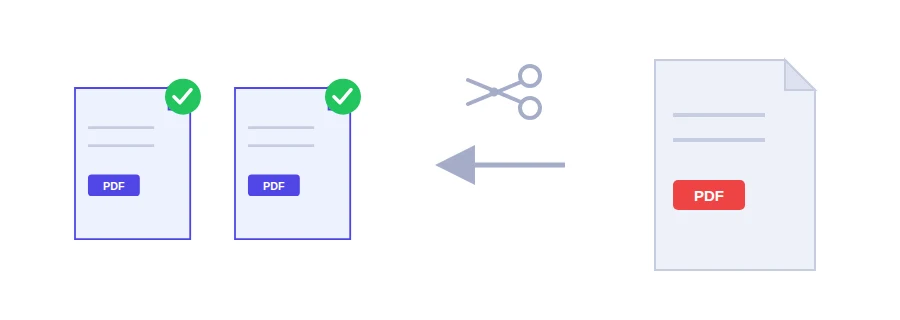
Often you don't need the whole document, just a slice of it: a ten-page contract where the landlord only wants the signed last page, or a long report where one chapter is all your colleague needs. Jood's split tool lets you pick exactly the pages you want and gives you a new PDF containing only those. Your original file stays as it was.
Telling the tool which pages to keep
Choose the PDF you want to take pages from.
Type the page numbers in the pages field. Separate single pages with commas (1, 4, 6), write a range with a dash (3-8), or mix both (1-3, 5, 8).
Click the extract button to download a new PDF that holds only those pages.
Cutting one PDF into several files
By default, selected pages are combined into one PDF. To get several files at once, choose a separate PDF per range or per page under Save mode. Up to three files download one by one; beyond that they arrive in a single ZIP file. Either way, the Download all (ZIP) button stays available. A single scan that holds your passport copy, a bank letter and a payslip one after the other can become three separate files this way, which is handy when an online application wants each document in its own upload box.
When it comes in handy
Sending only the signature page of a long contract.
Sharing one chapter of a book or report without the rest.
Pulling a single invoice out of a file that collects several months of them.
Getting rid of blank or extra pages by keeping only the ones you need.
For the opposite job, turning several files into one, use the PDF merge tool.
Split or delete pages: go with the shorter list
Both tools can lead to the same result. If you are keeping a few pages, splitting is quicker because you only type what you want. If the file has 30 pages and two of them have to go, the remove pages tool is easier: you type two numbers instead of twenty-eight.
Same pages, same quality, no upload
Reading the file and extracting the pages both happen inside your browser, so the document is never uploaded to a server. The pages are copied as they are, without being recompressed. There is no loss of quality, and text you could select in the original stays selectable in the new file.
FAQ
Yes. Enter a range such as 3-8 and only those pages will be written to the new file.
No. Pages are copied as they are, so the text stays selectable and images keep their original resolution.
We use cookies to measure traffic and improve the site (Google Analytics), and may show ads later. Nothing is enabled without your consent. Privacy policy