Getting the pictures out of a PDF without taking screenshots
A product brochure, a presentation exported as PDF, a report with photos and a logo: you need one of those images for a post, another document or a website. The usual move is a screenshot. What you get is capped at your screen's resolution, roughly cropped, and less sharp than the original.
Why extracting beats a screenshot
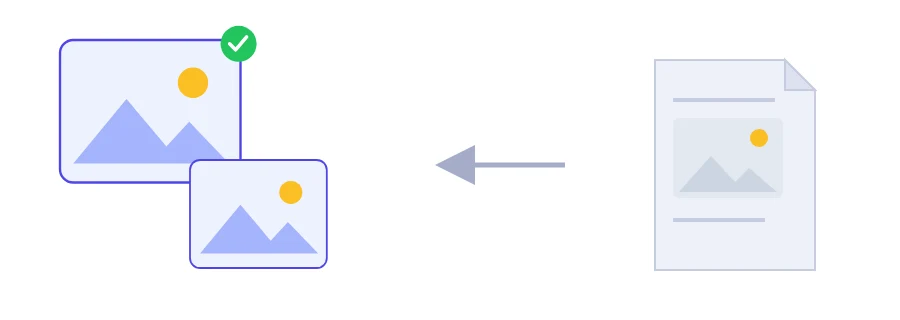
Images placed in a PDF are stored inside it as images in their own right. Jood's extraction tool takes each one out at its original resolution, with no recompression, saves it as a PNG and packs them all into a single ZIP file. You get the image the way the author put it in, not the way your screen happens to display it.
Select your PDF.
Click the extract button and the ZIP file downloads.
Unzip it and the images are inside.
What's in the ZIP
Every embedded image, including small ones such as logos and icons. Keep what you need and delete the rest.
Lossless PNG files. If they're heavier than you need, the image converter can turn them into JPG.
The ZIP came out empty
If nothing comes out, the pages of your PDF are most likely made of text and vector drawings only, so there are no embedded images to extract, even if some diagrams or tables look like pictures. In that case, turn whole pages into images with the PDF to PNG tool.
A scanned document works the other way round: each page is one big image. So you'll get the pages themselves, not the individual photos you can see on them.
Where your file is processed
Extraction runs on Jood's server. Your file is sent to our own server, processed there by open-source software with no third-party service involved, and the temporary files are deleted once processing is done.
FAQ
Yes. Images are saved at the exact resolution they have inside the file, in PNG format.
The pages may contain only text and vector graphics, with no images. Use the PDF to PNG tool to turn the pages themselves into images.
We use cookies to measure traffic and improve the site (Google Analytics), and may show ads later. Nothing is enabled without your consent. Privacy policy