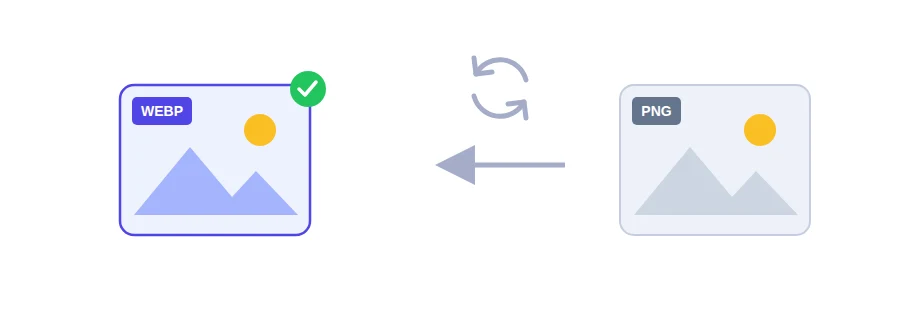
A rental application portal says it only takes JPG, and the scan of your payslip is a PNG. Or you saved an image from a website and it came down as WebP, which your older editing app refuses to open. Or you have a logo with a transparent background and need a version for a web page. The image itself is fine every time; only the format is in the way. This tool changes it.
Which format for which job
JPG is the most compatible. It opens everywhere and it is what most upload forms and offices expect. Good for photos, but it cannot store transparency.
PNG keeps transparency, so it suits logos, diagrams and screenshots with text in them.
WebP keeps transparency too and usually gives the smallest file, which is why it is the usual pick for images on a website.
What happens to a transparent background
JPG has no concept of transparency, so every transparent area turns white when you convert to it. That is harmless if the logo ends up on a white page or a printed invoice. On a coloured background, though, you get a visible white box around it. For that case, choose PNG or WebP instead.
One more thing worth knowing: converting a JPG to PNG does not bring back quality the JPG already lost. The new format stores the image exactly as it is, not better.
Converting a single image or a batch
Select one or more images. JPG, PNG, WebP, GIF and BMP are accepted.
Pick the output format: JPG, PNG or WebP.
Click the convert button and the converted images download.
Everything runs in your browser, and your images are never uploaded to a server.
iPhone photos and related jobs
iPhone photos saved as HEIC have their own tool: HEIC to JPG. If what you really need is a smaller file rather than a different format, the image compressor is the better fit. And if the images have to go in as one document, combine them into a PDF.
FAQ
Yes, when converting to PNG or WebP. JPG does not support transparency, so the background becomes white.
JPG, PNG, WebP, GIF and BMP.
We use cookies to measure traffic and improve the site (Google Analytics), and may show ads later. Nothing is enabled without your consent. Privacy policy