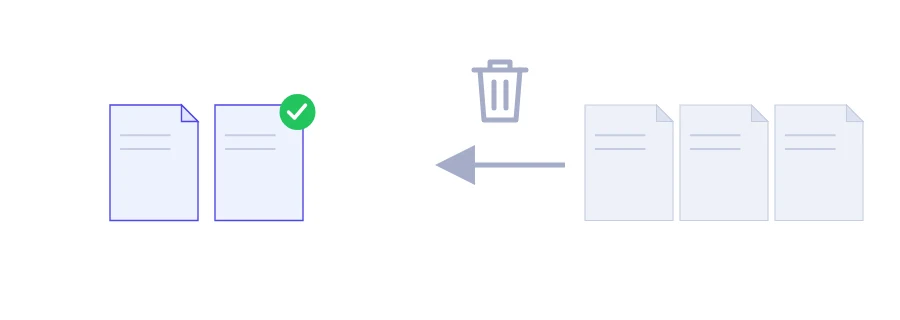
You scan a fifteen-page rental application, and just before sending it you notice the scanner slipped in two blank sheets, and there is also an inside cover nobody asked for. Everything else is fine. This Jood tool is made for exactly that: you type the numbers of the pages you don't want and download a new PDF without them.
You are not listing what to keep, only what to throw away. When just two or three pages are in the way, that is by far the quickest route.
How to write the pages you want gone
Choose your PDF file.
In the pages field, type what should go: single pages separated by commas, ranges with a hyphen. For example, 2, 4-6 removes page 2 and then pages 4, 5 and 6.
Click the delete button and the new PDF downloads.
Check the numbers in your PDF reader first. What counts is the page's position in the file, not the number printed at the bottom, and the two can differ when a document opens with an unnumbered cover or contents page.
Typical pages worth dropping
Blank sheets the scanner left between two documents.
A cover or title page the recipient has no use for.
A bank statement page unrelated to your visa file that you would rather not share.
A duplicate, such as the same invoice scanned twice.
Remove, extract, split or reorder?
A simple rule: type the shorter list. If a thirty-page PDF holds only three pages you need, extracting those three pages beats listing twenty-seven to delete. To cut a document into several parts, each in its own file, use the split tool. And if every page is needed but some sit in the wrong place, delete nothing and change the page order instead.
The pages are removed on your device
The file is read and edited inside your browser and is never uploaded to a server. What you download is a new copy, and your original stays untouched, so keep it until you are sure you did not remove a page you still need.
FAQ
Yes. List them separated by commas; you can mix single pages and ranges.
We use cookies to measure traffic and improve the site (Google Analytics), and may show ads later. Nothing is enabled without your consent. Privacy policy