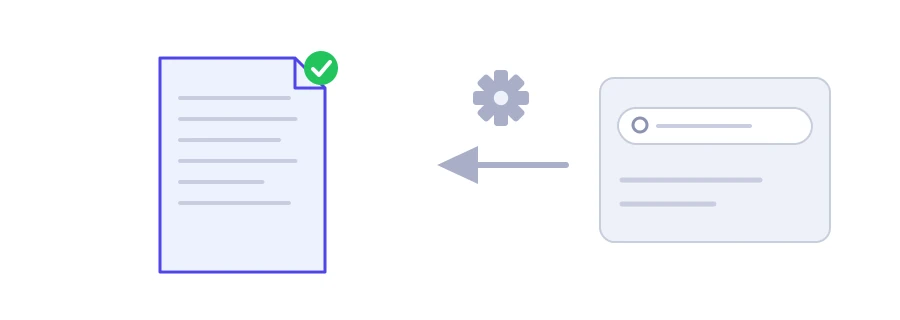
Many creators write the description at the last minute, so it ends up as one line or stays empty. Jood's YouTube description generator gives you a complete, organised layout from the video title alone: an intro line, a summary, a chapter list, links, a call to subscribe and hashtags. You then fill the gaps with details about your video.
How to use it
Type the video title in the "Video Title" box.
If you like, write one or two sentences of your own in the "Summary or Hook (Optional)" box. If you leave it empty, the tool adds a generic welcome paragraph that mentions your title.
If you like, also fill "Video chapters (optional, one line per chapter)", "Your links (optional, one line per link)" and "Hashtag words (optional, separated by commas)", for example "marketing, seo".
Click "Start Now", then copy the description with the "Copy Result" button.
The description is written in the language of the page you open the tool in, and each section starts with an emoji.
What to change before you publish
If you leave the optional boxes empty, the tool puts examples in their place, because it only knows what you write:
Chapter timestamps: if you leave the chapters empty, the times 00:00, 01:15, 04:30, 08:45 and 12:00 are the same in every description. Change each time and its label to match a real moment in your video, or delete the whole section.
Links: if you leave the links empty, the example.com links are placeholders that do not lead to your site. Put your real links in their place, or delete those lines.
Hashtags: if you leave the hashtag words empty, at the end you will find #YouTube and #Tutorial, followed by your whole title glued into one hashtag. If you write words, each becomes a hashtag, up to eight. Replace them with short hashtags that describe your topic.
Making chapters work on YouTube
If you keep the chapter section, follow YouTube's rules: the first timestamp must be 00:00, you need at least three timestamps in ascending order, and each chapter must last at least 10 seconds. YouTube then splits the progress bar into chapters with the names you wrote, and viewers can jump straight to the part they want.
Tips for a better description
Use the first two lines for the video itself: they are what shows before viewers expand the description, and YouTube recommends using them to describe the video.
Write your own summary: two honest sentences about what viewers will learn beat a generic welcome paragraph.
Give every video its own description: do not paste the same text under all your videos with only the title changed.
You have room: YouTube accepts up to 5,000 characters, and the generated description is far shorter, so add whatever helps the viewer.
We use cookies to measure traffic and improve the site (Google Analytics), and may show ads later. Nothing is enabled without your consent. Privacy policy