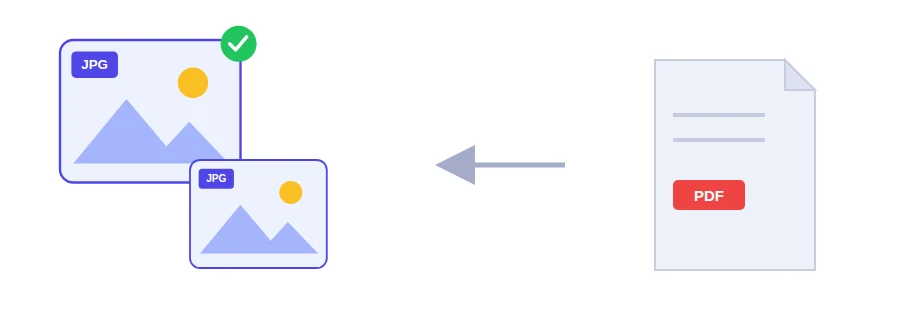
Someone sends you an event flyer, a timetable or a price list as a PDF, and you want to post it in a group chat or on social media. Few people bother opening a PDF on their phone, but everyone looks at an image that shows up right in the conversation. This tool turns every page of a PDF into its own JPG image, ready to share, drop into a slide or put on a web page.
From PDF to images in three steps
Choose one PDF file from your device.
Pick the resolution: 1.5x for light images, 2x (HD, selected by default) for everyday use, or 3x if you plan to print.
Click the convert button. Each page comes out as a separate JPG.
Picking the right resolution
2x is the right choice most of the time: text stays readable on a phone or laptop screen and the images stay reasonably light. Go down to 1.5x when all you want is a quick picture for a chat. Keep 3x for printing, or for pages with fine details you may need to zoom into, knowing the files will be bigger.
JPG for sharing, PNG for fine detail
JPG is the everyday photo format: smaller files that open on any phone and in any app, and it handles photos and colourful pages well. The trade-off is a slight loss of quality from compression, which can show around thin lines and very small text. For diagrams, tables in tiny print, or when you only want a range of pages, PDF to PNG is the better fit.
Where it comes in handy
Sharing a job ad, a notice or an exam timetable in a messaging group.
Placing a page from a report inside a PowerPoint deck.
Putting a page of a brochure or menu on a website or online shop.
Uploading a document to a portal that only accepts images when all you have is the PDF.
The tool converts every page of the file. If you only need page 3 of a long report, pull it out first with Extract PDF pages, then convert that short file.
Your PDF is never uploaded
The conversion runs inside your browser, on your own device, and the file is never sent to a server. That matters when a page carries personal details, like a copy of an ID card or a visa document. Because the work happens on your device, a long file at 3x simply takes longer than a short one at 1.5x.
FAQ
Pages are rendered at a higher resolution than your screen so they stay sharp when zoomed or printed.
We use cookies to measure traffic and improve the site (Google Analytics), and may show ads later. Nothing is enabled without your consent. Privacy policy