Free camera document scanner: auto edge detection, perspective correction, shadow removal, filters, PDF or JPG export and OCR. No app, no watermark, no limits.
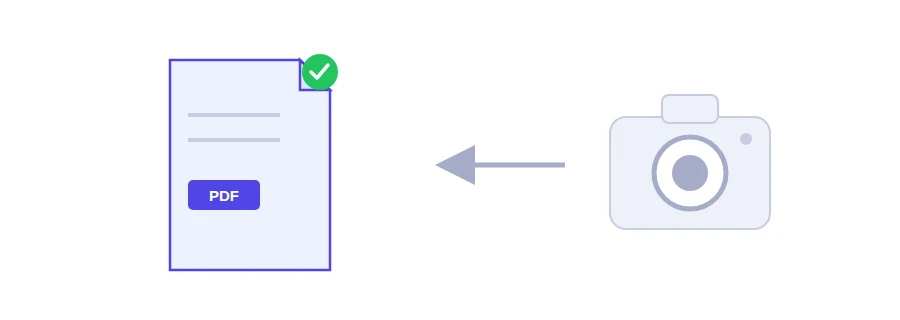
Hardly anyone keeps a scanner at home any more, yet offices and online portals still ask for "a scanned copy". Jood's smart scanner lets your phone camera do the job: it finds the edges of the page, straightens the perspective, removes shadows and gives you a clean PDF that looks like it came off a flatbed.
There's no app to install, no sign-up, no watermark and no page limit. It runs in the browser on a phone or a computer.
Scanning a page, start to finish
Open the camera from the page, or import photos you've already taken.
Shoot the page. The edges are detected automatically, and you can drag the four corners to fine-tune them, with a magnifier that shows exactly where each corner sits.
Add more pages if the document has several, reorder or rotate them, and choose a filter.
Export an A4 PDF, or save the pages as images.
Getting a scan that looks professional
Use the phone's rear camera. It's sharper than the front one.
Lay the page on a dark surface in good light, and keep the shadow of your hand or phone off the paper.
The black and white filter is best for text. The enhanced colour filter suits colour documents and anything with a stamp on it.
Set the quality to high, 300 DPI, if the document will be printed or handed to an official office.
What people scan with it
An ID card or proof of address for a visa file or a rental application.
A signed paper contract that has to go back by email.
A multi-page job application gathered into one PDF instead of a pile of photos.
Old invoices and receipts you want to keep in digital form.
Scanner, image converter or compressor
If your photos are already straight and cropped, the simpler JPG to PDF converter is enough. The scanner earns its place when the page was shot at an angle or in uneven light. And if the finished PDF is over a portal's size limit, run it through the PDF compressor.
Your photos stay on your device, with one exception
Edge detection, straightening, filters and building the PDF all happen in your browser. The only exception is the searchable PDF (OCR) option: if you turn it on, the final file is sent to the server for text recognition and deleted right afterwards. Leave it off and nothing leaves your device.
FAQ
No. The scanner runs directly in the browser on phones and computers, using camera permission that you can revoke at any time.
No page limit, no watermark and no sign-up. The only practical limit is your device’s memory.
No. Detection, straightening, filters and PDF creation all happen in your browser. The only exception is if you turn on the searchable PDF (OCR) option: the final file is then sent for text recognition and deleted immediately.
Use the rear camera, place the page on a dark surface in good light, and choose the “High (300 DPI)” quality. The “Black and white” filter is best for text, and “Enhanced color” for color documents and stamps.
We use cookies to measure traffic and improve the site (Google Analytics), and may show ads later. Nothing is enabled without your consent. Privacy policy