A PDF landed in your inbox and you need the gist first
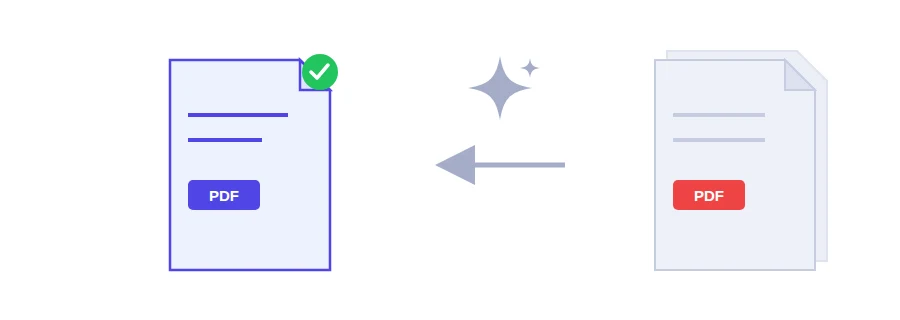
A policy update from HR, the terms of a scholarship, a tenant handbook from a new landlord. Before you sit down and read it properly, you want to know what it says and whether it concerns you at all. Jood's PDF summarizer reads the text of the document, up to 30 pages, and gives you a structured summary of its main points.
How much of the document gets summarized
The text is first extracted in your browser. Then the text of the first 30 pages, up to about 90,000 characters, is sent in one go to be summarized. That covers most letters, policies and contracts in full. The summary opens with a short overview, then lists the key points and, when the document mentions them, the dates, deadlines, amounts, required documents or steps to take. It is written in the language of the page you are on. If the document is longer, the page tells you which pages were covered, for example pages 1 to 30 out of 48.
The part you care about is on page 45
In a long report, the section you need may sit past page 30. Pull those pages out first with the extract PDF pages tool, then summarize the new, shorter file. That way you decide which section is summarized, and you can repeat it for another section of the same original.
Getting your summary
Choose one PDF from your device.
Start the analysis with the summarize button and wait for the result.
Check anything you will act on against the original: a deadline, a required document, an amount.
Without a key of your own, you can process 3 documents a day. If you need more, an optional field takes your own free Gemini key from Google AI Studio. It lifts the daily limit and is saved only in your browser.
Scanned documents need OCR first
A scanned or photographed PDF is made of images and holds no text to extract, so the summarizer has nothing to work with. Run it through OCR PDF to add a text layer, then summarize the result. If the document is in a language you don't read well, translating the PDF may be the better first step.
Where the text goes, and when not to use this
Unlike tools such as merge or split, which run entirely in your browser, the summarizer sends text through Jood's server to Google Gemini, which writes the summary. What is sent is the extracted text, not the file, but that text does leave your device. So don't use it for confidential material: a contract with personal details, medical records, or internal company documents. Those are worth reading yourself.
FAQ
No. Your browser extracts the text on your device, and only that text is passed through Jood's server to Google Gemini, which writes the summary. The file itself, with its images and layout, is not sent. The text does leave your device, though, so avoid the tool for confidential documents.
The first 30 pages, up to about 90,000 characters of text, sent in one go. If the document is longer, the page tells you which pages were covered. To summarize a later section, extract those pages into a separate PDF and summarize that file.
Yes. Without a key of your own, each visitor can process 3 documents a day. An optional field accepts your own free Gemini key from Google AI Studio. It lifts the daily limit and is saved only in your browser.
A scan is a set of images with no extractable text. Run it through Jood's OCR tool first to get a PDF with a text layer, then summarize it.
We use cookies to measure traffic and improve the site (Google Analytics), and may show ads later. Nothing is enabled without your consent. Privacy policy