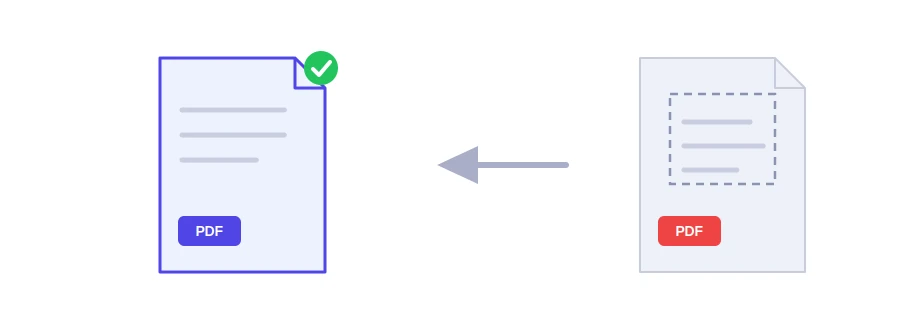
You scan a book or a document, and every page comes out framed by a wide white border, or by grey edges left by the scanner lid. On a computer it hardly matters. On a phone or an e-reader, though, a big part of the screen is wasted on white space and the text looks tiny. Jood's crop PDF tool trims those margins from every page of the file in one go.
How to crop
Choose the PDF file on your device.
In the "Margin to trim on each side (in millimetres, mm)" box, enter how many millimetres to remove. The suggested value is 12, and you can choose anything from 1 to 80.
Click "Crop and download PDF", and a file named cropped_document.pdf downloads.
The same amount is removed from the top, bottom, right and left of every page. The tool never takes more than 30% of the page's width or height from one side, so the page cannot vanish if you type a large number. The page really becomes smaller, so PDF readers show it larger on screen.
How many millimetres?
Start small, between 10 and 15, then open the result. If there is still a lot of white, go back to the original file and try a larger value. Documents written in Word often have margins of about 2.5 centimetres, so trimming 15 to 20 millimetres still leaves a little breathing room around the text. Trim more than the margin is wide and you will cut into the text itself.
What the tool does not do
It does not delete content: the trimmed part is hidden, not erased, and stays inside the file. If the edges hold sensitive information, use the PDF redaction tool.
It does not crop one side only: the margin is the same on all four sides and for every page. To crop only some pages, separate them first with the split PDF tool, crop them, then put everything back together with the merge PDF tool.
It does not make the file smaller: the hidden content is still in it.
Your file stays with you
Cropping happens in your browser, and the file is never uploaded to a server. No account, nothing to install.
FAQ
No. Cropping only changes the visible edges of the page, and the trimmed content stays inside the file. To remove sensitive information for good, use the PDF redaction tool.
No. The tool removes the same margin from all four sides and on every page. To crop certain pages, separate them with the split tool, crop them, then merge again.
No, because the hidden content stays in it. To reduce the size, use the compress PDF tool.
We use cookies to measure traffic and improve the site (Google Analytics), and may show ads later. Nothing is enabled without your consent. Privacy policy