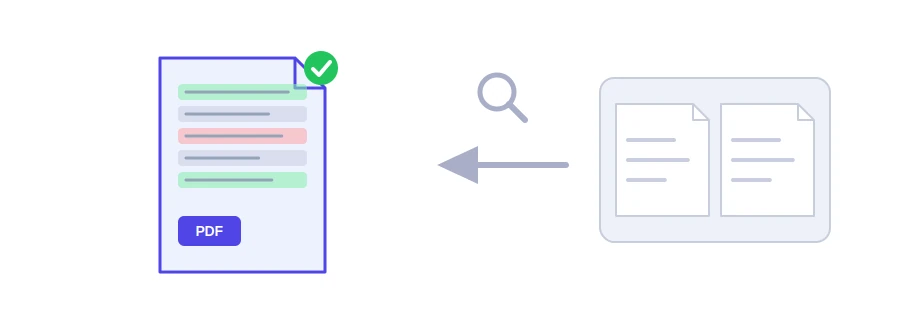
You sent out a contract or a report, and it came back in a new version without anyone telling you what was edited. Reading both files line by line is exhausting, and a small change slips by easily. Jood's compare PDF tool compares the text of the two versions word by word and shows you the removed and added words in place.
How to compare
Click "Browse files" and choose the old version, then do it again to choose the new one. You can also drop both files onto the box.
Check the order under "Selected documents": the first file is the old version. If the order is reversed, remove the first file with the bin icon next to it and add it again, so it moves to the end of the list.
Click "Compare the two versions".
The number of removed and added words appears at the top of the result, then each changed spot with a few words before and after it, and the page number in both files. Words removed from the first version show in red and struck through, words new in the second show in green. A text report of the changes comes with the result, ready to copy or download.
A comparison that is not fooled by page shifts
The tool compares the text of the whole document, not each page on its own. If a paragraph is added on page 2 and pushes everything after it down, the following pages are not all marked as different: only the new paragraph is shown. And if the two files differ too much, the tool tells you the gap is too large to show word by word.
Limits of the comparison
Text only: a change to an image, a colour, bold text or the layout does not appear.
Scanned PDFs: they are images with no text, so the tool has nothing to compare. Run them through the OCR PDF tool first.
A moved paragraph: if it changes place, it shows as removed in the old spot and added in the new one.
Two files only: if you add more, the tool compares the first two in the list.
A Word file: convert it first with the Word to PDF tool.
Your files stay with you
The comparison runs in your browser and neither file is uploaded to a server. That matters when the file is a contract or an internal document.
FAQ
No. The text is read and compared in your browser, and the files never leave your device.
Because a scanned PDF is an image with no text. Run both files through an OCR tool first so their text becomes readable, then compare them.
No. The comparison covers text only, so a changed image, colour or font does not show up.
We use cookies to measure traffic and improve the site (Google Analytics), and may show ads later. Nothing is enabled without your consent. Privacy policy