Printing a colour PDF without using up your colour ink
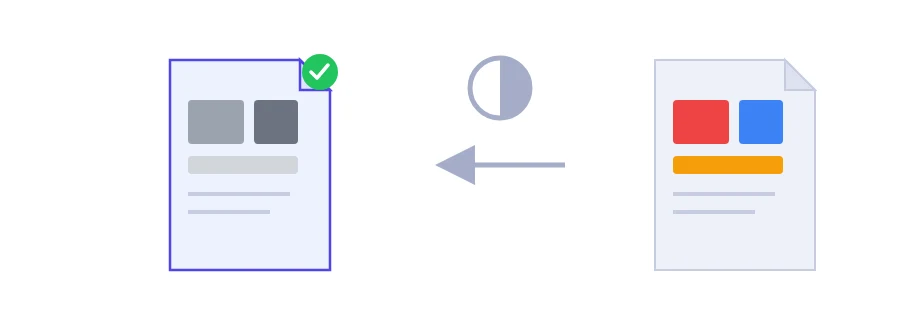
An invoice with coloured headers, a certificate scanned in colour, a slide deck full of charts: you want to print it at home or at a copy shop without paying for colour ink. Or the office handling your application wants documents in black and white. Jood's greyscale tool turns every colour in the PDF into shades of grey and gives you a file ready to print or send.
How the conversion works
Select your PDF.
Click the convert button, wait a moment for processing to finish, and the greyscale file downloads.
Good reasons to go grey
Colour ink: printing in grey saves your colour ink, and the saving adds up quickly on a long document or several copies.
File size: the file often gets smaller, especially when it is a colour scan. Handy when an upload portal caps the attachment size. If it's still too heavy, run it through the PDF compressor afterwards.
Official requirements: some administrations ask for black and white documents. You can prepare the file the way they want without rescanning anything.
Your text stays real text
You might expect the conversion to flatten every page into a picture. It doesn't: if your PDF contains actual text, that text stays selectable, copyable and searchable. The text itself is not touched; only the colours are converted. A scanned document is made of images from the start, so it stays that way.
Keep your colour original, though, because the colours don't come back after conversion. And if your documents are still on paper, the black and white filter in the smart scanner lets you capture them in that format directly.
Where the conversion runs
This tool runs on Jood's server, not in your browser. Your file is sent to our own server, processed there by open-source software with no third-party service involved, and the temporary files are deleted once processing is done.
FAQ
Yes. Only the color is converted; the text stays text, not an image.
Usually yes, especially for files with many color images.
We use cookies to measure traffic and improve the site (Google Analytics), and may show ads later. Nothing is enabled without your consent. Privacy policy